Zynap Sandbox Integration Guide
Overview
The Zynap Sandbox integration (integration service: malware-api) allows your NINA workflows to seamlessly connect with the internal Zynap Malware Analysis service for malware scanning, analysis, and threat intelligence. This integration enables you to analyze malware samples (either by uploading files or using existing SHA256 hashes), retrieve analysis results, and manage malware data directly from your workflows using gRPC communication.
This is an internal integration service designed for security teams to access Zynap Sandbox capabilities within your organization's security infrastructure.
Status
We currently support comprehensive CRUD operations for Malware samples and Analysis Jobs, including:
- Malware Management: Upload, retrieve, and list malware samples with detailed information
- Malware Analysis: Analyze malware using either file upload or SHA256 hash through a single endpoint
- Job Monitoring: Track analysis progress with automatic polling
- Advanced Querying: Execute MongoDB queries for complex data filtering
- File Downloads: Retrieve compressed analysis reports
Some of the main capabilities include:
- Real-time Job Monitoring: Track analysis progress with automatic polling
- Signature Analysis: Access malware signatures and Zynap intelligence
- Target Information: Retrieve detailed target and behavioral data
- Batch Operations: List and filter multiple samples or jobs
- Report Generation: Download comprehensive analysis reports
Credential Configuration
Before using the Zynap Sandbox integration in your workflows, you need to configure the gRPC connection settings. This integration uses no authentication but requires a gRPC address configuration.
Authentication Method
The Zynap Sandbox integration uses no authentication:
No Authentication Required
Simple connection configuration using only a gRPC address:
| Field | Description | Example |
|---|---|---|
| gRPC Address | gRPC server address for the Malware API | localhost:50051 |
How to obtain your gRPC Address:
- Contact your organization's security team or administrator for access to the Zynap Sandbox service
- Request the internal gRPC server address for the Malware API service
- Ensure you have network access to the internal gRPC service
- Verify the address format includes the host and port (e.g.,
hostname:port)
Note: This is an internal integration service typically used within your organization's security infrastructure. Access is controlled at the network level rather than through API authentication.
Creating a Zynap Sandbox Configuration
-
Navigate to the Credentials section in NINA
-
Click Add New Credential
-
Fill in the credential details:
- Name: A descriptive name (e.g., "Zynap Sandbox Internal")
- Description: Optional details about the configuration's purpose
- Integration Service: Select "Zynap Sandbox"
- gRPC Address: Enter the Malware API gRPC server address (e.g.,
localhost:50051)
-
Click Test Connection to verify gRPC connectivity
-
Click Save to store the configuration
Supported Resources and Operations
The Zynap Sandbox integration supports the following resources and operations:
Malware
| Operation | Description |
|---|---|
| Get Malware | Retrieves basic malware information by SHA256 hash |
| Get Malware Info | Retrieves detailed malware information and metadata |
| Get Malware Zynap | Retrieves Zynap-specific intelligence and analysis |
| Get Malware Zynap Bulk | Retrieves Zynap information for multiple malware samples in bulk |
| Get Malware Signatures | Retrieves signature information for a malware sample |
| List Malware | Lists malware samples with filtering and pagination |
| Execute Malware Mongo Query | Execute MongoDB queries for advanced filtering |
Malware Analysis
| Operation | Description |
|---|---|
| Analyze Malware | Unified endpoint for malware analysis - accepts either file data or SHA256 hash |
| Analyze Malware (Bulk) | Bulk malware analysis endpoint - accepts an array of file_data samples for batch processing |
| Get Malware Job | Retrieves information about a specific analysis job |
| Get Malware Job Status | Monitors job status with automatic polling until completion |
| Get Malware Job Report (GZIP) | Downloads compressed analysis report |
| Get Malware Job Binary Report | Downloads binary log of analysis job |
| List Malware Jobs | Lists analysis jobs with filtering and pagination |
Parameter Merging and Templating
The Zynap Sandbox integration takes full advantage of NINA's parameter merging and templating capabilities:
Parameter Sources (in order of precedence)
- Node Parameters: Parameters configured directly in the Zynap Sandbox Integration Node
- Extracted Parameters: Parameters automatically extracted from the input data
- Input Data: The complete input data from upstream nodes
When a Zynap Sandbox Integration Node executes:
- It combines parameters from all sources
- Node parameters take precedence over extracted parameters
- The combined parameters are used to execute the Zynap Sandbox operation
Malware Analysis
The analyzeMalware operation provides a unified interface for malware analysis, accepting either:
- File Data: Base64-encoded file content for new samples
- SHA256 Hash: Hash of existing malware samples
Key Features:
- Mutual Exclusivity: Exactly one of
file_dataorsha256must be provided - Automatic Routing: File data goes to upload pipeline, SHA256 goes to job creation
- Consistent Interface: Same parameters and response format regardless of input type
- Operating System Selection: Required choice between Windows 7 and Windows 10
Example: Unified Malware Analysis
Analyzing a New File Sample
Below is an example of analyzing a new malware sample passing a sha256sum:
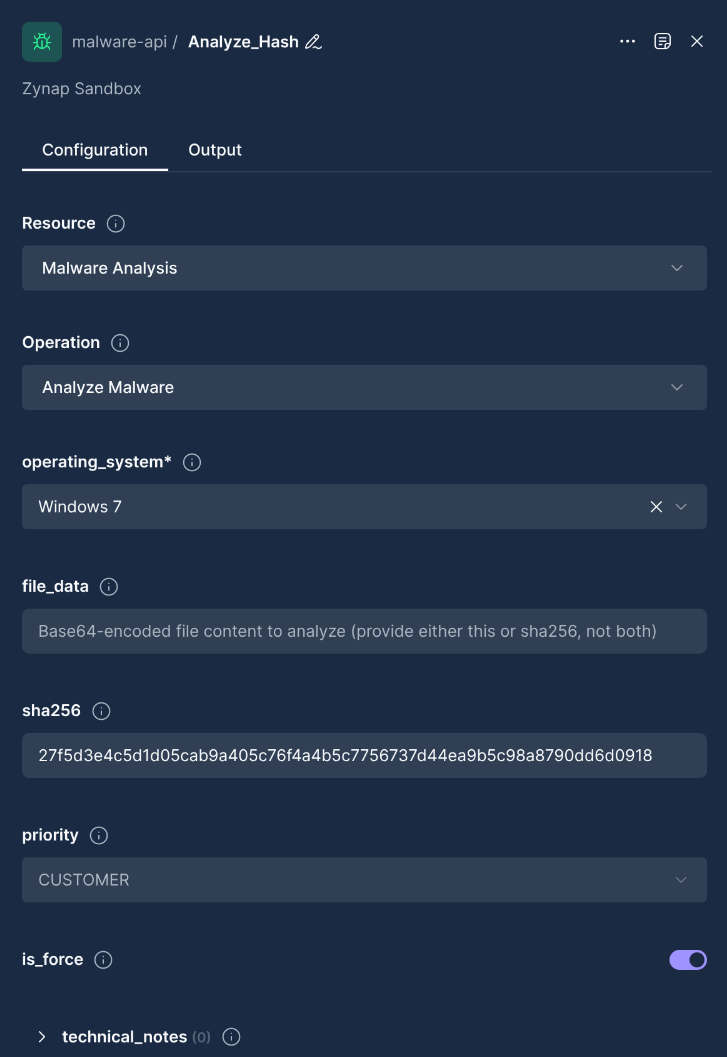
Node Configuration for File Upload:
{
  "integration_service": "zynap-sandbox",
  "resource": "malware_analysis",
  "operation": "analyzeMalware",
  "parameters": {
    "file_data": "UEsDBBQAAAAIAAwVQ1cAAAAA...",
    "operating_system": "Windows 10",
    "priority": "HIGH",
    "is_force": false
  }
}
Analyzing an Existing Sample by Hash
Node Configuration for SHA256 Analysis:
{
  "integration_service": "zynap-sandbox",
  "resource": "malware_analysis",
  "operation": "analyzeMalware",
  "parameters": {
    "sha256": "a1b2c3d4e5f6789abcdef1234567890",
    "operating_system": "Windows 7",
    "priority": "CRITICAL",
    "technical_notes": ["Detected via threat hunting", "High priority analysis"]
  }
}
Using Template Variables
You can use template variables to dynamically insert values from input data:
Input Data from Previous Node:
{
  "suspicious_file": {
    "name": "malicious.exe",
    "content": "UEsDBBQAAAAIAAwVQ1cAAAAA...",
    "sha256": "a1b2c3d4e5f6789abcdef1234567890"
  },
  "analysis_config": {
    "os": "Windows 10",
    "priority_level": "HIGH",
    "force_reanalysis": true
  }
}
Node Configuration with Template Variables:
{
  "integration_service": "zynap-sandbox",
  "resource": "malware_analysis",
  "operation": "analyzeMalware",
  "parameters": {
    "file_data": "{{suspicious_file.content}}",
    "operating_system": "{{analysis_config.os}}",
    "priority": "{{analysis_config.priority_level}}",
    "is_force": "{{analysis_config.force_reanalysis}}"
  }
}
Example: Bulk Malware Analysis
Analyzing Multiple File Samples
For processing multiple malware samples simultaneously, use the bulk analysis operation:
Input Data from Previous Node:
{
  "suspicious_files": [
    {
      "name": "malware1.exe",
      "content": "UEsDBBQAAAAIAAwVQ1cAAAAA..."
    },
    {
      "name": "malware2.dll",
      "content": "TVqQAAMAAAAEAAAA//8AALgA..."
    },
    {
      "name": "malware3.bin",
      "content": "7z¼¯'œÄ™Ôg®²ÚÝ©¼..."
    }
  ],
  "analysis_config": {
    "os": "Windows 10",
    "priority_level": "HIGH",
    "force_reanalysis": false
  }
}
Node Configuration for Bulk Analysis:
{
  "integration_service": "zynap-sandbox",
  "resource": "malware_analysis",
  "operation": "analyzeMalwareBulk",
  "parameters": {
    "operating_system": "{{analysis_config.os}}",
    "priority": "{{analysis_config.priority_level}}",
    "is_force": "{{analysis_config.force_reanalysis}}",
    "samples": [
      {
        "file_data": "{{suspicious_files[0].content}}"
      },
      {
        "file_data": "{{suspicious_files[1].content}}"
      },
      {
        "file_data": "{{suspicious_files[2].content}}"
      }
    ]
  }
}
Bulk Analysis Benefits
The bulk analysis operation provides several advantages:
- Batch Processing: Submit multiple samples in a single request
- Consistent Configuration: Apply the same analysis settings to all samples
- Efficient Resource Usage: Optimized processing for multiple samples
- Unified Response: Receive results for all samples in a structured format
- Error Handling: Individual sample failures don't affect the entire batch
Bulk Analysis Response Structure:
{
  "results": [
    {
      "sample_index": 0,
      "status": "success",
      "entity_id": "analysis_job_123",
      "sha256": "a1b2c3d4e5f6789abcdef1234567890"
    },
    {
      "sample_index": 1,
      "status": "success",
      "entity_id": "analysis_job_124",
      "sha256": "1234567890abcdef1234567890abcdef"
    },
    {
      "sample_index": 2,
      "status": "failed",
      "error": "Unsupported file format",
      "sha256": null
    }
  ],
  "batch_info": {
    "total_samples": 3,
    "successful": 2,
    "failed": 1
  }
}
Example: Monitoring Analysis Jobs
Monitoring Job Status with Automatic Polling
The getMalwareJobStatus operation automatically polls the job until completion:
Node Configuration:
{
  "integration_service": "zynap-sandbox",
  "resource": "malware_analysis",
  "operation": "getMalwareJobStatus",
  "parameters": {
    "entity_ids": ["{{job_id}}"]
  }
}
This operation will:
- Poll every 30 seconds
- Wait up to 60 minutes for completion
- Return final results when job reaches a terminal status
- Handle intermediate statuses like "PENDING", "COLLECTED", "SUCCESS"
Downloading Analysis Reports
Node Configuration:
{
  "integration_service": "zynap-sandbox",
  "resource": "malware_analysis",
  "operation": "getMalwareJobReportGzip",
  "parameters": {
    "entity_id": "{{completed_job_id}}"
  }
}
Downloading Binary Reports
The getMalwareBinaryReport operation allows you to download the binary report from an S3 pre-signed URL:
Node Configuration:
{
  "integration_service": "zynap-sandbox",
  "resource": "malware_analysis",
  "operation": "getMalwareBinaryReport",
  "parameters": {
    "entity_id": "{{completed_job_id}}"
  }
}
It will return an object with this shape
{
  "download_url": "https://mlwr.s3.amazonaws.com/binary_log....",
}
Example: Retrieving Malware Intelligence
Getting Comprehensive Malware Information
Input Data:
{
  "hash_to_analyze": "a1b2c3d4e5f6789abcdef1234567890",
  "analysis_type": "full"
}
Node Configuration:
{
  "integration_service": "zynap-sandbox",
  "resource": "malware",
  "operation": "getMalwareInfo",
  "parameters": {
    "sha256": "{{hash_to_analyze}}"
  }
}
Getting Zynap Intelligence
Node Configuration:
{
  "integration_service": "zynap-sandbox",
  "resource": "malware",
  "operation": "getMalwareZynap",
  "parameters": {
    "sha256": "{{hash_to_analyze}}"
  }
}
Getting Signature Information
Node Configuration:
{
  "integration_service": "zynap-sandbox",
  "resource": "malware",
  "operation": "getMalwareSignatures",
  "parameters": {
    "sha256": "{{hash_to_analyze}}"
  }
}
Getting Zynap Intelligence in Bulk
For processing multiple SHA256 hashes efficiently, use the bulk Zynap operation:
Input Data:
{
  "hash_list": [
    "a1b2c3d4e5f6789abcdef1234567890",
    "1234567890abcdef1234567890abcdef",
    "fedcba0987654321fedcba0987654321",
    "invalid_hash_will_be_skipped"
  ]
}
Node Configuration:
{
  "integration_service": "zynap-sandbox",
  "resource": "malware",
  "operation": "getMalwareZynapBulk",
  "parameters": {
    "sha256_hashes": "{{hash_list}}"
  }
}
This operation will return separate arrays for successful results, failed lookups, and skipped invalid hashes, allowing you to process large batches efficiently while handling errors gracefully.
Example: Listing and Filtering Data
Listing Malware Samples with Filtering
Node Configuration:
{
  "integration_service": "zynap-sandbox",
  "resource": "malware",
  "operation": "listMalware",
  "parameters": {
    "pagination": {
      "page_size": 50,
      "cursor": "eyJpZCI6IjEyMzQ1NiJ9"
    },
    "filters": {
      "status_in": ["COMPLETED", "ANALYZED"],
      "sha256_in": [
        "a1b2c3d4e5f6789abcdef1234567890",
        "1234567890abcdef1234567890abcdef"
      ]
    }
  }
}
Listing Analysis Jobs
Node Configuration:
{
  "integration_service": "zynap-sandbox",
  "resource": "malware_analysis",
  "operation": "listMalwareJobs",
  "parameters": {
    "pagination": {
      "page_size": 20,
      "cursor": "eyJpZCI6IjEyMzQ1NiJ9"
    },
    "filters": {
      "status_in": ["COMPLETED", "FAILED"],
      "sha256": "a1b2c3d4e5f6789abcdef1234567890"
    }
  }
}
Advanced Malware Search with MongoDB Queries
Execute Complex Queries Using MongoDB Syntax
Execute complex queries using MongoDB syntax:
Input Data from Previous Node:
{
  "search_criteria": {
    "confidence_range": {
      "min": 80,
      "max": 100
    },
    "date_range": {
      "from": "2024-01-01",
      "to": "2024-12-31"
    },
    "threat_indicators": {
      "ips": ["192.168.1.100", "10.0.0.50"],
      "domains": ["malicious-domain.com", "evil-site.net"],
      "tags": ["APT29", "BANKING_TROJAN"]
    }
  }
}
Node Configuration with Template Variables:
{
  "integration_service": "zynap-sandbox",
  "resource": "malware",
  "operation": "executeMalwareMongoQuery",
  "parameters": {
    "page_size": 50,
    "filters": {
      "confidence_min": "{{search_criteria.confidence_range.min}}",
      "confidence_max": "{{search_criteria.confidence_range.max}}",
      "first_seen_from": "{{search_criteria.date_range.from}}",
      "first_seen_to": "{{search_criteria.date_range.to}}",
      "ip_in": "{{search_criteria.threat_indicators.ips}}",
      "domain_in": "{{search_criteria.threat_indicators.domains}}",
      "tag_in": "{{search_criteria.threat_indicators.tags}}"
    }
  }
}
MongoDB Query Filters
The Execute Malware Mongo Query operation supports extensive filtering options:
Basic Filters
sha256_in: Array of SHA256 hashesconfidence_min/confidence_max: Confidence score range (0-100)severity_min/severity_max: Severity level rangefirst_seen_from/first_seen_to: Date range filters (ISO format)
Network Indicators
ip_in: Array of IP addressesurl_in: Array of URLsdomain_in: Array of domainsemail_in: Array of email addresses
Process and System Indicators
process_name_in: Array of process namesmutex_in: Array of mutex nameswmi_in: Array of WMI queries
Certificate Information
certificates_serial_number_in: Certificate serial numberscertificates_md5_in/certificates_sha1_in/certificates_sha256_in: Certificate hashescertificates_subject_email_in: Certificate subject emailscertificates_subject_common_name_in: Certificate common namescertificates_subject_country_in: Certificate countries
Metadata Filters
metadata_ssdeep_original_in: SSDEEP hashesmetadata_crc32_original_in: CRC32 checksumsmetadata_pe_imphash_in: PE import hashes
Threat Intelligence
attack_pattern_id_in: MITRE ATT&CK pattern IDstag_in: Threat tags (automatically converted to uppercase)snort_sid_in: Snort signature IDs
Crime Server Data
crimeservers_c2_in: Command and control serverscrimeservers_binary_downloads_in: Binary download URLscrimeservers_proxies_in: Proxy serversmalware_config_in: Malware configuration data
Please note that string array fields will only perform full matches, not partial ones, e.g.: domain_in, url_in, ip_in, email_in, etc
Example Complex Query
{
  "integration_service": "zynap-sandbox",
  "resource": "malware",
  "operation": "executeMalwareMongoQuery",
  "parameters": {
    "page_size": 100,
    "filters": {
      "confidence_min": 75,
      "severity_min": 7,
      "first_seen_from": "2024-01-01T00:00:00.000Z",
      "ip_in": ["192.168.1.100", "10.0.0.50"],
      "domain_in": ["malicious.com", "evil.net"],
      "attack_pattern_id_in": ["T1055", "T1059"],
      "tag_in": ["APT29", "BANKING_TROJAN"],
      "process_name_in": ["powershell.exe", "cmd.exe"],
      "certificates_subject_country_in": ["CN", "RU"]
    }
  }
}
Pagination and Result Management
Cursor-Based Pagination
Most listing operations support cursor-based pagination:
{
  "parameters": {
    "page_size": 100,
    "cursor": "eyJpZCI6IjEyMzQ1NiJ9"
  }
}
This prevents overloading the database and returning results in an ordered matter. The first query does not require a cursor and will return the first N results (based on page_size). The response will include a "cursor id" (as above). If more results are needed, simply repeat the request specifying such cursor id this time.
Response Format
All operations return structured JSON responses. Example response from Execute Malware Mongo Query:
{
  "items": [
    {
      "created_at": {
        "seconds": 1705316400,
        "nanos": 0
      },
      "sha256": "a1b2c3d4e5f6g7h8i9j0k1l2m3n4o5p6q7r8s9t0u1v2w3x4y5z6a1b2c3d4e5f6",
      "sources": [
        {
          "code": "internal",
          "source_id": "internal_analysis",
          "created_at": {
            "seconds": 1705316400,
            "nanos": 0
          },
          "first_seen": {
            "seconds": 1705316400,
            "nanos": 0
          },
          "confidence": 85,
          "classification": [
            {
              "malware_type": "trojan",
              "malware_subtype": {
                "name": "banking_trojan",
                "version": "v2.1"
              },
              "date": {
                "seconds": 1705316400,
                "nanos": 0
              },
              "source": "static_analysis"
            }
          ]
        }
      ],
      "confidence": 85,
      "status": "COMPLETED",
      "file_type": "PE32",
      "last_job_id": "job_123456789",
      "severity": 8,
      "size_mb": 2.5
    }
  ],
  "pagination": {
    "cursor": "eyJpZCI6IjEyMzQ1NiJ9",
    "total_count": 150,
    "page_size": 50
  }
}
Example: Advanced Data Extraction
Using Automatic Parameter Extraction
When an upstream node provides Zynap Sandbox-specific data, the Integration Node can automatically extract and use it:
Input Data from Previous Node:
{
  "sha256": "a1b2c3d4e5f6789abcdef1234567890",
  "priority": "CRITICAL",
  "operating_system": "Windows 10",
  "is_force": true
}
Node Configuration (Minimal):
{
  "integration_service": "zynap-sandbox",
  "resource": "malware_analysis",
  "operation": "analyzeMalware",
  "parameters": {
    "technical_notes": ["Detected via threat hunting", "High priority analysis"]
  }
}
Final Merged Parameters:
The integration automatically extracts relevant fields from the input data:
{
  "sha256": "a1b2c3d4e5f6789abcdef1234567890",
  "priority": "CRITICAL",
  "operating_system": "Windows 10",
  "is_force": true,
  "technical_notes": ["Detected via threat hunting", "High priority analysis"]
}
Priority Levels and Operating System Options
Available Priority Levels
- CUSTOMER: Customer-specific priority (default)
- CRITICAL: Highest priority for immediate analysis
- HIGH: High priority analysis
- NORMAL: Standard priority
- LOW: Lower priority analysis
- USELESS: Lowest priority
Supported Operating Systems
- Windows 7: Analysis on Windows 7 environment (API receives empty platform)
- Windows 10: Analysis on Windows 10 environment (API receives "WIN10")
Job Status Types
In-Progress Statuses
- PENDING: Job is queued for analysis
- COLLECTED: Sample has been collected for analysis
- SUCCESS: Analysis is in progress
Final Statuses
- COMPLETED: Analysis completed successfully
- FAILED: Analysis failed due to an error
- UNSUPPORTED: File type or platform not supported
- DISCARDED: Job was discarded due to policy or resource constraints
Filter Behavior
- Omitted filter and empty array (
[]): both are silently ignored — the filter is not applied and all matching records are returned. - Multiple filters: combined with AND logic — a record must satisfy all specified filters to appear in results.
Best Practices
-
Choose the Right Input Method: Use file_data for new samples, sha256 for existing samples to avoid unnecessary uploads.
-
Set Appropriate Priorities: Use priority levels strategically - reserve CRITICAL and CUSTOMER for genuine high-priority threats.
-
Select Correct Operating System: Choose the operating system that matches your target environment - Windows 7 for legacy systems, Windows 10 for modern environments.
-
Monitor Job Status: Use the
getMalwareJobStatusoperation for long-running analyses to get automatic polling and completion detection. -
Configure gRPC Connection: Ensure the gRPC address is correctly configured and the internal service is accessible from your network.
-
Leverage Template Variables: Use
{{variable_name}}syntax to dynamically insert values from upstream nodes. -
Handle File Encoding: Ensure malware samples are properly base64-encoded before upload. Large files should be processed in chunks.
-
Use Bulk Operations: When analyzing multiple samples, use bulk operations (
analyzeMalwareBulk,getMalwareZynapBulk) for better performance and efficiency. -
Implement Error Handling: Malware analysis can fail for various reasons - implement proper error handling and retry logic. Note that gRPC streaming operations (like report downloads) may show validation errors during file chunk processing rather than immediately.
-
Cache Analysis Results: Store analysis results locally to avoid re-analyzing the same samples unnecessarily.
-
Set Reasonable Timeouts: Analysis can take significant time - set realistic expectations for job completion.
-
Secure Your Workflow: Handle malware samples securely throughout your workflow - use secure temporary storage and proper cleanup.
-
Use Technical Notes: For SHA256-based analysis, include technical_notes to provide context about the sample origin and analysis purpose.
-
Monitor Resource Usage: Be mindful of concurrent analysis jobs and gRPC connection limits for internal services.
-
Validate Input Data: Always validate SHA256 hashes and file data before sending to the sandbox.
-
Use Cursor Pagination: For large result sets, use cursor-based pagination for better performance and consistency.
-
Leverage MongoDB Queries: Use
Execute Malware Mongo Queryoperation for complex searches across multiple threat intelligence fields. -
Filter Strategically: Use specific filters to reduce result sets and improve query performance - remember that string array fields require exact matches.
-
Unified Analysis Benefits: Take advantage of the unified analyzeMalware endpoint to simplify your workflows and reduce complexity.
-
Internal Service Access: Ensure proper network connectivity and access controls for the internal Zynap Sandbox gRPC service.
Updated: 2026-01-15