Google Sheets Integration Guide
Overview
The Google Sheets integration allows your NINA workflows to connect with Google Sheets for spreadsheet and data management. This integration enables you to create, read, update, and manage spreadsheet data directly from your workflows, making it ideal for data processing, reporting, and automation tasks.
Status
At present, our integration supports core functionalities related to spreadsheet management and data operations. The integration covers:
- Spreadsheet Management: Create and delete spreadsheets
- Sheet Management: Create, read, update, and delete sheets within spreadsheets
- Data Operations: Append, update, or clear data in sheets
- Advanced Operations: Perform combined operations like append-or-update based on matching columns
Credential Configuration
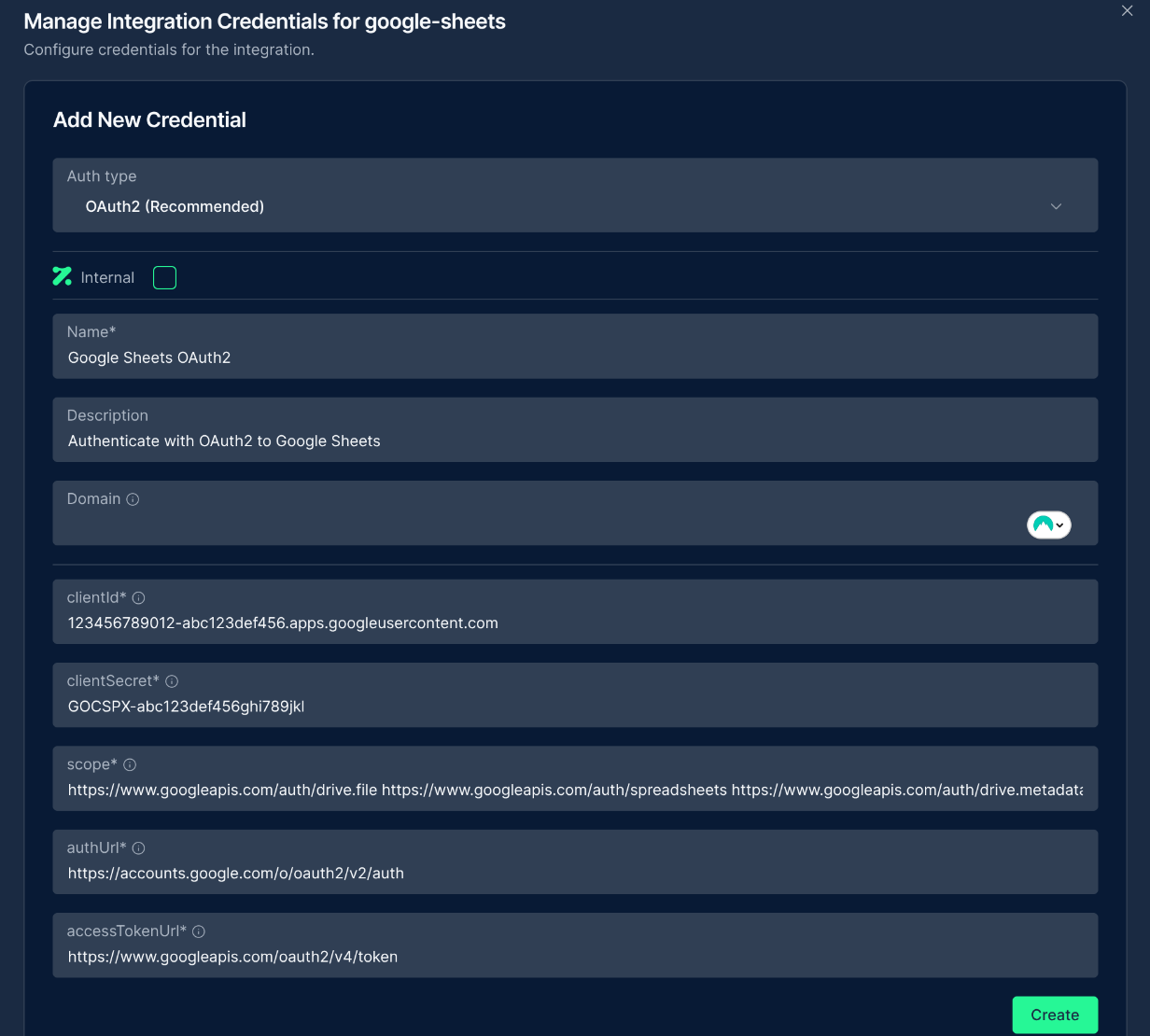
Before using the Google Sheets integration in your workflows, you need to configure credentials for authentication. The NINA platform supports two authentication methods for Google Sheets:
Authentication Methods
OAuth2 Authentication (Recommended)
| Field | Description | Example |
|---|---|---|
| Client ID | OAuth2 client ID | 123456789012-abc123def456.apps.googleusercontent.com |
| Client Secret | OAuth2 client secret | GOCSPX-abc123def456ghi789jkl |
| Scope | OAuth2 scopes | https://www.googleapis.com/auth/drive.file https://www.googleapis.com/auth/spreadsheets https://www.googleapis.com/auth/drive.metadata |
| Auth URL | Authorization URL | https://accounts.google.com/o/oauth2/v2/auth |
| Access Token URL | Access token URL | https://www.googleapis.com/oauth2/v4/token |
How to set up OAuth2:
- Go to the Google Cloud Console
- Create a new project (or select an existing one)
- Navigate to "APIs & Services" > "Credentials"
- Configure the OAuth consent screen:
- Select User Type (Internal or External)
- Add app information and developer contact details
- Add the required Google Sheets API scopes
- Create OAuth client ID credentials:
- Select "Web application" as the application type
- Add authorized redirect URIs:
- For POC environment:
https://poc.zynap.com/api/v1/oauth2/callback - For Production environment:
https://platform.zynap.com/api/v1/oauth2/callback
- For POC environment:
- Note your Client ID and Client Secret
- Enable the Google Sheets API and Google Drive API in "APIs & Services" > "Library"
Service Account Authentication
| Field | Description | Example |
|---|---|---|
| Service Account JSON | JSON key file for Google Service Account | {"type": "service_account", "project_id": "your-project-id", ...} |
How to set up Service Account:
- Go to the Google Cloud Console
- Create a new project (or select an existing one)
- Navigate to "IAM & Admin" > "Service Accounts"
- Create a new service account
- Grant appropriate roles to the service account
- Create a key for the service account (JSON format)
- Enable the Google Sheets API and Google Drive API
- Share your Google Sheets documents with the service account email address
Creating a Google Sheets Credential
- Navigate to the Credentials section in NINA
- Click Add New Credential
- Fill in the credential details:
- Name: A descriptive name (e.g., "Google Sheets Production")
- Description: Optional details about the credential's purpose
- Integration Service: Select "Google Sheets"
- Fill in the authentication fields (Client ID, Client Secret, etc. for OAuth2, or Service Account JSON)
- Click Create to verify credentials, this will lead to a Google Authentication page to confirm the access that is needed.
Supported Resources and Operations
The Google Sheets integration supports the following resources and operations:
Spreadsheet
| Operation | Description |
|---|---|
| Create | Creates a new spreadsheet |
| Delete | Permanently deletes a spreadsheet |
Sheet
| Operation | Description |
|---|---|
| Append | Adds new rows to a sheet |
| Append or Update | Updates existing rows or appends new ones based on a matching column |
| Clear | Clears data from a sheet |
| Create | Creates a new sheet within a spreadsheet |
| Read | Retrieves data from a sheet |
| Update | Updates data in existing rows |
| Remove | Deletes a sheet from a spreadsheet |
| Delete | Deletes specific rows or columns |
Parameter Merging
The Google Sheets integration takes full advantage of NINA's parameter merging capabilities:
Parameter Sources (in order of precedence)
- Node Parameters: Parameters configured directly in the Google Sheets Integration Node
- Extracted Parameters: Parameters automatically extracted from the input data
- Input Data: The complete input data from upstream nodes
When a Google Sheets Integration Node executes:
- It combines parameters from all sources
- Node parameters take precedence over extracted parameters
- The combined parameters are used to execute the Google Sheets operation
Example: Sheet Operations
Reading Data from a Sheet
Retrieve data from a Google Sheets document:
Node Configuration:
{
  "resource": "sheet",
  "operation": "read",
  "parameters": {
    "documentId": {
      "mode": "id",
      "value": "1BxiMVs0XRA5nFMdKvBdBZjgmUUqptlbs74OgvE2upms"
    },
    "sheetName": {
      "mode": "name",
      "value": "Sheet1"
    },
    "options": {
      "valueRenderOption": "FORMATTED_VALUE",
      "dateTimeRenderOption": "FORMATTED_STRING",
      "rawData": false,
      "dataStartRow": 2
    }
  }
}
Appending Data to a Sheet
Add new rows to an existing sheet:
Node Configuration:
{
  "resource": "sheet",
  "operation": "append",
  "parameters": {
    "documentId": {
      "mode": "id",
      "value": "1BxiMVs0XRA5nFMdKvBdBZjgmUUqptlbs74OgvE2upms"
    },
    "sheetName": {
      "mode": "name",
      "value": "Sheet1"
    },
    "columns": [
      ["John", "Doe", "[email protected]", "555-1234"],
      ["Jane", "Smith", "[email protected]", "555-5678"]
    ],
    "options": {
      "cellFormat": "auto",
      "useAppend": true
    }
  }
}
Updating Existing Rows
Update data in specific rows:
Node Configuration:
{
  "resource": "sheet",
  "operation": "update",
  "parameters": {
    "documentId": {
      "mode": "id",
      "value": "1BxiMVs0XRA5nFMdKvBdBZjgmUUqptlbs74OgvE2upms"
    },
    "sheetName": {
      "mode": "name",
      "value": "Sheet1"
    },
    "columns": [
      ["Updated Name", "Updated Email", "Updated Phone"]
    ],
    "options": {
      "locationDefine": "rowNumber",
      "rowNumber": 3,
      "cellFormat": "auto"
    }
  }
}
Smart Append or Update
Update existing rows or append new ones based on a matching column:
Node Configuration:
{
  "resource": "sheet",
  "operation": "appendOrUpdate",
  "parameters": {
    "documentId": {
      "mode": "id",
      "value": "1BxiMVs0XRA5nFMdKvBdBZjgmUUqptlbs74OgvE2upms"
    },
    "sheetName": {
      "mode": "name",
      "value": "Sheet1"
    },
    "columns": [
      ["[email protected]", "John", "Doe", "Updated Info"],
      ["[email protected]", "New", "User", "New Entry"]
    ],
    "columnToMatchOn": "Email",
    "options": {
      "cellFormat": "auto"
    }
  }
}
Clearing Sheet Data
Clear data from a sheet:
Node Configuration:
{
  "resource": "sheet",
  "operation": "clear",
  "parameters": {
    "documentId": {
      "mode": "id",
      "value": "1BxiMVs0XRA5nFMdKvBdBZjgmUUqptlbs74OgvE2upms"
    },
    "sheetName": {
      "mode": "name",
      "value": "Sheet1"
    },
    "range": "A2:D100"
  }
}
Example: Spreadsheet Operations
Creating a New Spreadsheet
Create a new Google Sheets document:
Node Configuration:
{
  "resource": "spreadsheet",
  "operation": "create",
  "parameters": {
    "title": "Monthly Sales Report",
    "additionalFields": {
      "locale": "en_US",
      "autoRecalc": "ON_CHANGE",
      "sheetsUi": {
        "sheetOptions": [
          {
            "title": "Sales Data",
            "headerValues": "Date, Region, Product, Units, Revenue"
          },
          {
            "title": "Analysis",
            "headerValues": "Metric, Value, Change"
          }
        ]
      }
    }
  }
}
Creating a New Sheet Within a Spreadsheet
Add a new sheet to an existing spreadsheet:
Node Configuration:
{
  "resource": "sheet",
  "operation": "create",
  "parameters": {
    "documentId": {
      "mode": "id",
      "value": "1BxiMVs0XRA5nFMdKvBdBZjgmUUqptlbs74OgvE2upms"
    },
    "title": "New Report Sheet",
    "options": {
      "headerValues": "Date, Category, Amount, Notes",
      "gridProperties": {
        "gridOptions": {
          "rowCount": 1000,
          "columnCount": 10
        }
      }
    }
  }
}
Deleting a Spreadsheet
Permanently delete a Google Sheets document:
Node Configuration:
{
  "resource": "spreadsheet",
  "operation": "deleteSpreadsheet",
  "parameters": {
    "documentId": {
      "mode": "id",
      "value": "1BxiMVs0XRA5nFMdKvBdBZjgmUUqptlbs74OgvE2upms"
    }
  }
}
Dynamic Selection of Spreadsheets and Sheets
The Google Sheets integration supports dynamic selection of spreadsheets and sheets in your workflows:
Resource Locator for Documents
When configuring a node that requires a document ID, you can use the resource locator to:
- Select from a list of documents you have access to
- Specify a document URL
- Enter a document ID directly
Resource Locator for Sheets
When selecting a sheet within a document, you can:
- Choose from the list of available sheets in the selected document
- Enter a sheet name directly
This dynamic selection makes it easy to configure your integration nodes without having to manually look up IDs.
Best Practices
For optimal use of the Google Sheets integration, follow these best practices:
-
Sheet Structure Planning: Design your sheets with clear headers and consistent data formats.
-
Data Validation: Validate data before sending it to Google Sheets to ensure consistency.
-
Batch Operations: Use batch operations for multiple rows rather than individual operations.
-
Error Handling: Implement proper error handling in your workflows, especially for operations that might fail due to data inconsistencies.
-
Cell Formatting: Use the appropriate cell format options (auto, raw, userEntered) based on your data needs.
-
Permission Management: Ensure proper access permissions are set on your Google Sheets documents.
-
Resource Cleanup: Regularly review and clean up unused spreadsheets and sheets.
Troubleshooting
Common issues and their solutions:
Authentication Errors
Issue: "Failed to authorize with Google Sheets API" Solution: Verify that your OAuth2 credentials are correct and that the Google Sheets API is enabled in your Google Cloud project.
Permission Errors
Issue: "Insufficient permission to access document" Solution: Ensure that the authenticated user or service account has appropriate access to the spreadsheet you're trying to work with.
Data Format Issues
Issue: "Data not appearing as expected in the sheet" Solution: Check the cell format option in your operation settings. Use "auto" (USER_ENTERED) for data with formatting and "raw" (RAW) for literal values.
Missing Headers
Issue: "Column matching not working in appendOrUpdate operation" Solution: Ensure that your sheet has headers in the first row and that the columnToMatchOn parameter exactly matches one of these headers.
Rate Limiting
Issue: "Rate limit exceeded" Solution: Implement backoff strategies in your workflows or reduce the frequency of API calls.
Additional Resources
Updated: 2025-12-02