Google Drive Integration Guide
Overview
The Google Drive integration allows your NINA workflows to connect with Google Drive for file and folder management. This integration enables you to create, retrieve, update, delete, share, and organize files and folders, as well as manage shared drives, all directly from your workflows.
Status
At present, our integration supports core functionalities related to file and folder management. The integration covers:
- File Management: Create, Create from text, download, copy, move, share, and delete files
- Folder Management: Create, share, and delete folders
- Search Capabilities: Search for files and folders with various filters
- Shared Drive Management: Create, get, update, and delete shared drives
Credential Configuration
Before using the Google Drive integration in your workflows, you need to configure credentials for authentication. The NINA platform supports OAuth2 authentication for Google Drive:
Authentication Methods
OAuth2 Authentication
| Field | Description | Example |
|---|---|---|
| Client ID | OAuth2 client ID | 123456789012-abc123def456.apps.googleusercontent.com |
| Client Secret | OAuth2 client secret | GOCSPX-abc123def456ghi789jkl |
| Scope | OAuth2 scopes | https://www.googleapis.com/auth/drive |
| Auth URL | Authorization URL | https://accounts.google.com/o/oauth2/auth |
| Access Token URL | Access token URL | https://oauth2.googleapis.com/token |
If you need multiple scopes, add them one after another separated by space, e.g.:
https://www.googleapis.com/auth/drive https://www.googleapis.com/auth/drive.readonly
You can find most of the scopes here
How to set up OAuth2:
- Go to the Google Cloud Console
- Create a new project (or select an existing one)
- Navigate to "APIs & Services" > "Credentials"
- Configure the OAuth consent screen:
- Select User Type (Internal or External)
- Add app information and developer contact details
- Add the Google Drive API scope (
https://www.googleapis.com/auth/drive)
- Create OAuth client ID credentials:
- Select "Web application" as the application type
- Add authorized redirect URIs:
- For POC environment:
https://poc.zynap.com/api/v1/oauth2/callback - For Production environment:
https://platform.zynap.com/api/v1/oauth2/callback
- For POC environment:
- Note your Client ID and Client Secret
- Enable the Google Drive API in "APIs & Services" > "Library"
Creating a Google Drive Credential
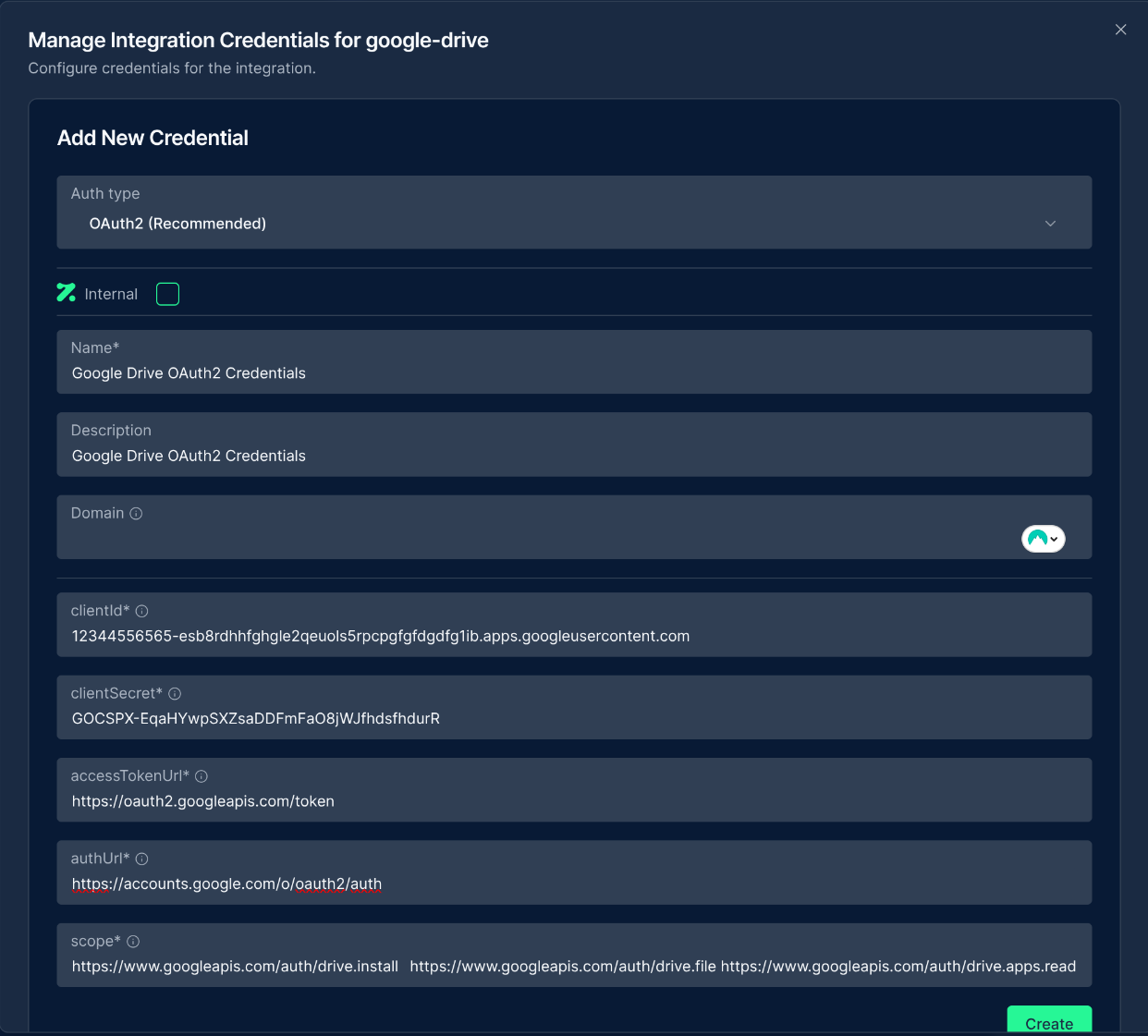
- Navigate to the Credentials section in NINA
- Click Add New Credential
- Fill in the credential details:
- Name: A descriptive name (e.g., "Google Drive Production")
- Description: Optional details about the credential's purpose
- Fill in the authentication fields (Client ID, Client Secret, etc.)
- Click Create to verify credentials, this will lead to a Google Authentication page to confirm the access that is needed.
Supported Resources and Operations
The Google Drive integration supports the following resources and operations:
File
| Operation | Description |
|---|---|
| Copy | Creates a copy of an existing file |
| Create From Text | Creates a new file from text content |
| Delete | Permanently deletes a file |
| Download | Downloads a file from Google Drive by name or search query |
| Bulk Download | Downloads multiple files from Google Drive |
| Move | Moves a file to a different folder |
| Share | Adds sharing permissions to a file |
| Update | Updates file properties |
| Upload | Uploads a file to Google Drive |
| Bulk Upload | Uploads multiple files to Google Drive |
Folder
| Operation | Description |
|---|---|
| Create | Creates a new folder |
| Delete | Permanently deletes a folder |
| Share | Adds sharing permissions to a folder |
File/Folder
| Operation | Description |
|---|---|
| Search | Searches or lists files and folders based on criteria |
Shared Drive
| Operation | Description |
|---|---|
| Create | Creates a new shared drive |
| Delete | Permanently deletes a shared drive |
| Get | Retrieves details of a specific shared drive |
| Get Many | Retrieves multiple shared drives |
| Update | Updates shared drive properties |
Parameter Merging
The Google Drive integration takes full advantage of NINA's parameter merging capabilities:
Parameter Sources (in order of precedence)
- Node Parameters: Parameters configured directly in the Google Drive Integration Node
- Extracted Parameters: Parameters automatically extracted from the input data
- Input Data: The complete input data from upstream nodes
When a Google Drive Integration Node executes:
- It combines parameters from all sources
- Node parameters take precedence over extracted parameters
- The combined parameters are used to execute the Google Drive operation
Example: File Operations
Creating a Text File
Below is an example of creating a new text file in Google Drive:
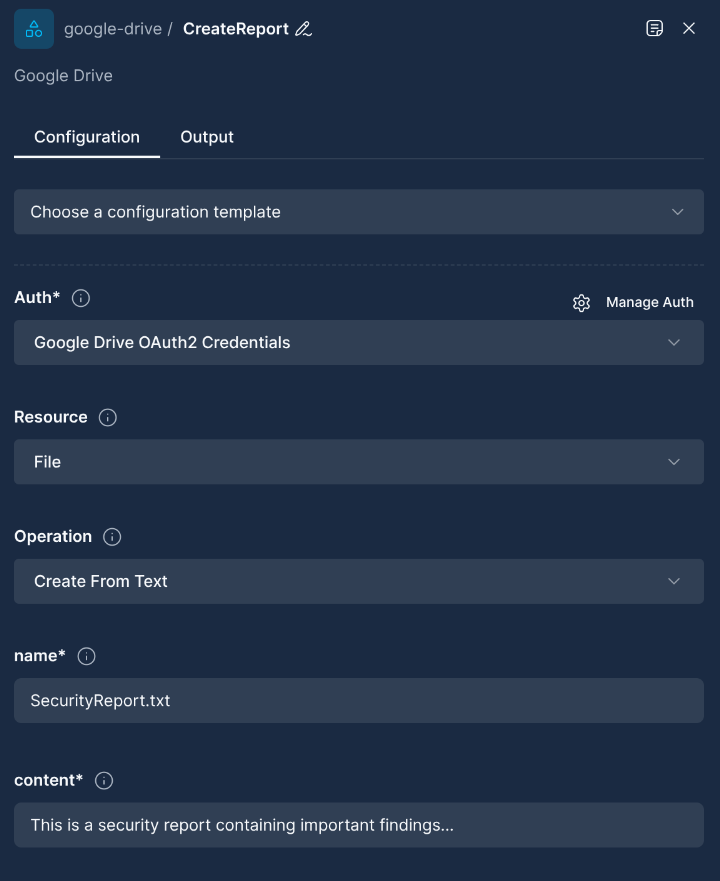
Node Configuration:
{
  "resource": "file",
  "operation": "createFromText",
  "parameters": {
    "name": "SecurityReport.txt",
    "content": "This is a security report containing important findings..."
  }
}
Uploading a File
There are two ways to upload a file to a Google Drive and they are exclusive, meaning that either binaryData or fileUrl should be provided, not both neither none.
The destinationFolder parameter allows you to specify a folder by name where the file should be uploaded. If the folder doesn't exist, it will be created automatically. If not provided, the file is uploaded to the root of Google Drive.
Uploading a file from binaryData
Binary data has to be provided as a base64 string. It is not recommended to paste it directly in the google drive node as, depending on the size of the file, it may crash the browser. Instead, the recommended procedure is to use the Input node, then a python Script node that parses the uploaded file and outputs a dictionary like the following one:
{
  "binaryData": "JVBERi0xLjQKMyAwIG9iaiA8PAovTGVuZ3RoIDQ2MjIgICAgICAKL0ZpbHRlciAvRmxhdGVEZWNvZGUKPj4Kc3RyZWFtCnjarVrZk9y20X/3X7FVcVVmKzM0QfDMU2xJdqRYZZW1iasS5wFDYmdo8ZiPh9fjv[...]",
  "fileName": "the-file-name.pdf"
}
If such a node Script is then connected to a Google Drive node with the UploadFile set, the latter will take as an input the output from the script and load the file.
Node Configuration:
{
  "resource": "file",
  "operation": "upload",
  "parameters": {
    "fileName": "financial-report.pdf",
    "destinationFolder": "Reports",
    "additionalFields": {
      "description": "Financial report for Q2 2024",
      "mimeType": "application/pdf"
    }
  }
}
Uploading a file from a URL
This is a more straight-forward way to upload a file as it only requires the Google Drive node. Set a file name and provide a URL and it is good to go.
Node Configuration:
{
  "resource": "file",
  "operation": "upload",
  "parameters": {
    "fileName": "financial-report.pdf",
    "fileUrl": "https://mozilla.github.io/pdf.js/web/compressed.tracemonkey-pldi-09.pdf",
    "destinationFolder": "Reports",
    "additionalFields": {
      "description": "Financial report for Q2 2024",
      "mimeType": "application/pdf"
    }
  }
}
Downloading a File
Download a file from Google Drive by file name or search query. Google native files (Docs, Sheets, Slides) are automatically converted to PDF format:
Download by File Name:
{
  "resource": "file",
  "operation": "download",
  "parameters": {
    "fileName": "financial-report.pdf"
  }
}
Download by Search Query:
{
  "resource": "file",
  "operation": "download",
  "parameters": {
    "searchQuery": "name contains 'report' and mimeType = 'application/pdf'"
  }
}
Bulk Downloading Files
Download multiple files from Google Drive using various selection methods:
Bulk Download by Folder Name:
{
  "resource": "file",
  "operation": "bulkDownload",
  "parameters": {
    "folderName": "Project Documents",
    "maxConcurrentDownloads": 5
  }
}
Bulk Download by File Names:
{
  "resource": "file",
  "operation": "bulkDownload",
  "parameters": {
    "fileNames": ["report1.pdf", "report2.pdf", "presentation.pptx"],
    "maxConcurrentDownloads": 3
  }
}
Bulk Download by Search Query:
{
  "resource": "file",
  "operation": "bulkDownload",
  "parameters": {
    "searchQuery": "mimeType = 'application/pdf' and modifiedTime > '2024-01-01T00:00:00'",
    "maxConcurrentDownloads": 10
  }
}
Bulk Uploading Files
Upload multiple files to Google Drive simultaneously:
Bulk Upload with Binary Data:
{
  "resource": "file",
  "operation": "bulkUpload",
  "parameters": {
    "fileNames": ["document1.pdf", "document2.txt"],
    "binaryDataArray": [
      "JVBERi0xLjQKMyAwIG9iaiA8PAovTGVuZ3RoIDQ2MjIgICAgICAK...",
      "VGhpcyBpcyBhIHNhbXBsZSB0ZXh0IGZpbGUgY29udGVudA=="
    ],
    "destinationFolder": "Uploaded Documents",
    "maxConcurrentUploads": 5
  }
}
Bulk Upload with URLs:
{
  "resource": "file",
  "operation": "bulkUpload",
  "parameters": {
    "fileNames": ["sample1.pdf", "sample2.pdf"],
    "fileUrls": [
      "https://example.com/file1.pdf",
      "https://example.com/file2.pdf"
    ],
    "destinationFolder": "Downloaded Files",
    "maxConcurrentUploads": 3
  }
}
Sharing a File
Share a file with specific users or groups:
Node Configuration:
{
  "resource": "file",
  "operation": "share",
  "parameters": {
    "fileId": {
      "mode": "id",
      "value": "file_id_abc"
    },
    "permissionType": "user",
    "role": "writer",
    "emailAddress": "[email protected]",
    "additionalFields": {
      "sendNotificationEmail": true,
      "emailMessage": "I've shared a document with you for collaboration."
    }
  }
}
Example: Folder Operations
Creating a Folder
Create a new folder in Google Drive:
Node Configuration:
{
  "resource": "folder",
  "operation": "create",
  "parameters": {
    "name": "Project Documentation",
    "additionalFields": {
      "description": "Folder for storing project-related documents",
      "parentId": {
        "mode": "id",
        "value": "parent_folder_id_123"
      }
    }
  }
}
Sharing a Folder
Share a folder with specific users or groups:
Node Configuration:
{
  "resource": "folder",
  "operation": "share",
  "parameters": {
    "folderId": {
      "mode": "id",
      "value": "folder_id_def"
    },
    "permissionType": "domain",
    "role": "reader",
    "domain": "example.com"
  }
}
Example: Search Operations
Searching for Files and Folders
Search for files and folders based on specific criteria:
Node Configuration:
{
  "resource": "fileFolder",
  "operation": "search",
  "parameters": {
    "returnAll": false,
    "limit": 50,
    "options": {
      "query": "mimeType = 'application/pdf' and 'me' in owners and modifiedTime > '2024-01-01T00:00:00'",
      "fields": "id,name,mimeType,webViewLink,modifiedTime",
      "orderBy": "modifiedTime desc",
      "includeItemsFromAllDrives": true,
      "includePermissionsForView": "published"
    }
  }
}
Example: Shared Drive Operations
Creating a Shared Drive
Create a new shared drive:
Node Configuration:
{
  "resource": "sharedDrive",
  "operation": "create",
  "parameters": {
    "name": "Marketing Team Drive",
    "requestId": "unique-request-id-123",
    "additionalFields": {
      "themeId": "blue",
      "colorRgb": "#4285F4"
    }
  }
}
Retrieving Shared Drives
Get a list of all shared drives:
Node Configuration:
{
  "resource": "sharedDrive",
  "operation": "getMany",
  "parameters": {
    "returnAll": false,
    "limit": 25
  }
}
Dynamic Selection of Files and Folders
The Google Drive integration supports dynamic selection of files, folders, and shared drives in your workflows:
Resource Locator for Files and Folders
When configuring a node that requires a file or folder ID, you can use the resource locator to search and select from available resources:
This feature allows you to:
- Search for files, folders, or shared drives by name
- Select from available resources
- Dynamically reference resources using their ID or name
Best Practices
For optimal use of the Google Drive integration, follow these best practices:
-
File Organization: Maintain a consistent folder structure to easily locate and manage files.
-
File Naming Conventions: Use clear, descriptive names for files and folders to improve searchability.
-
Permission Management: Be mindful of sharing permissions to ensure data security.
-
Search Optimization: Use specific search queries to efficiently find files and folders.
-
Batching Operations: Use bulk upload and bulk download operations for handling multiple files efficiently. These operations minimize API calls and improve performance.
-
Concurrency Control: When using bulk operations, adjust the
maxConcurrentUploadsandmaxConcurrentDownloadsparameters based on your system's capabilities and Google Drive API limits. -
Destination Folders: Use the
destinationFolderparameter in upload operations to organize files automatically. The system will create folders if they don't exist. -
Error Handling: Implement proper error handling in your workflows to manage cases where operations fail.
-
Resource Clean-up: Regularly clean up temporary files to avoid storage limits.
Troubleshooting
Common issues and their solutions:
Authentication Errors
Issue: "Failed to authorize with Google Drive API" Solution: Verify that your OAuth2 credentials are correct and that the Google Drive API is enabled in your Google Cloud project.
Permission Errors
Issue: "Insufficient permission to access resource" Solution: Ensure that the authenticated user has appropriate access to the files or folders you're trying to work with.
Rate Limiting
Issue: "Rate limit exceeded" Solution: Implement backoff strategies in your workflows or reduce the frequency of API calls.
File Upload Issues
Issue: "Failed to upload file" Solution: Check that the file size doesn't exceed Google Drive limits and that the file format is supported.
Resource Not Found
Issue: "File or folder not found" Solution: When using name-based operations (fileName, folderName), ensure the names are exact matches. Use search queries for partial matches.
Bulk Operation Errors
Issue: "binaryDataArray and fileNames must have the same length"
Solution: Ensure that the number of items in binaryDataArray (or fileUrls) matches exactly the number of items in fileNames.
Google Native File Downloads
Issue: "Only files with binary content can be downloaded" Solution: Google native files (Docs, Sheets, Slides) are automatically converted to PDF format during download. No additional configuration is needed.
Additional Resources
- Google Drive API Documentation
- Google OAuth2 Documentation
- Google Cloud Console Updated: 2025-12-02