Trigger Node Guide
Overview
The Trigger Node serves as the entry point for NINA workflows that are initiated by external events. Unlike other nodes that process data sequentially, Trigger Nodes wait for external events (such as webhooks) to start workflow execution and provide initial data to downstream nodes.
Use Cases
- Receiving security alerts from external monitoring systems
- Processing webhook notifications from security platforms
- Automated response to incident reports
- Starting workflows based on external API events
- Real-time threat intelligence processing
- Automated vulnerability management workflows
- Incident response automation
- Threat hunting automation
Creating a Trigger Node
Basic Setup
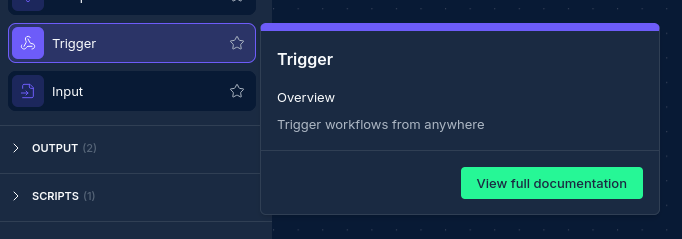
- Drag a Trigger Node from the node palette onto your workflow canvas
- Configure the trigger type (currently supports webhooks)
- Set up the trigger configuration and authentication
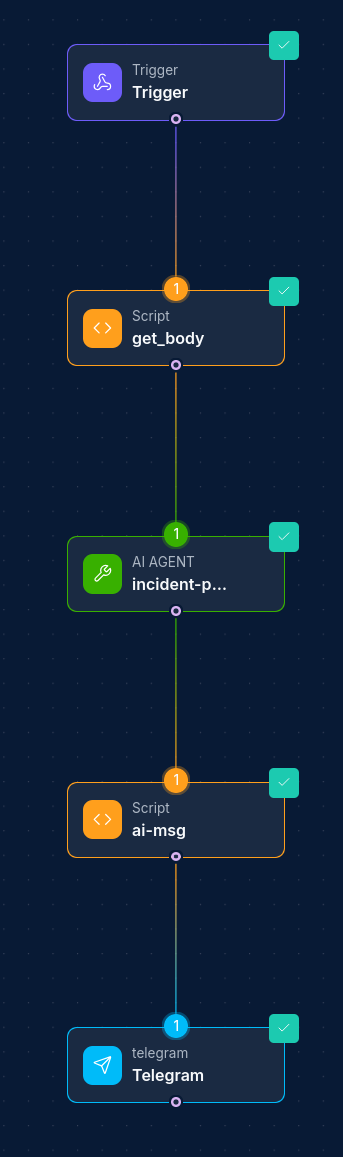
- Connect the node to downstream nodes for processing
Trigger Types
Trigger Nodes currently support webhook triggers, with support for additional trigger types planned:
1. Webhook Triggers
Webhook triggers listen for HTTP requests from external systems and use the request payload to start workflow execution:
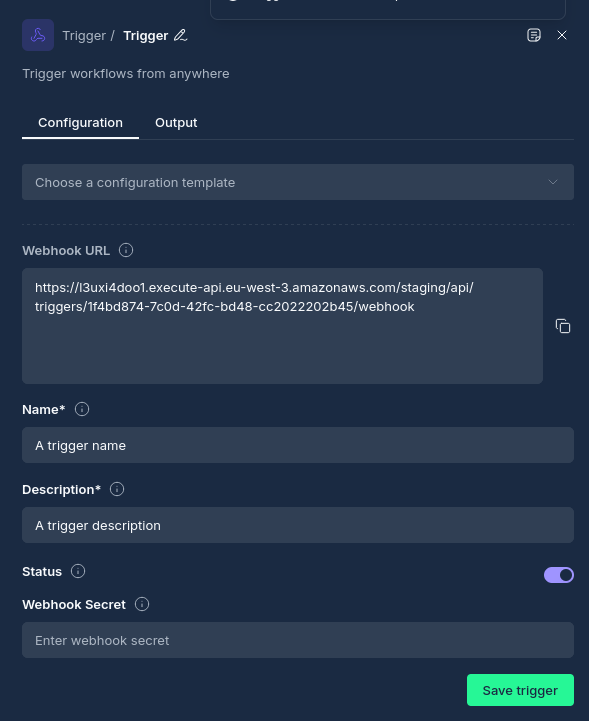
- Webhook URL: A unique URL endpoint that external systems can call
- Authentication: Optional webhook secret for request verification
- Request Body: JSON payload from the external system becomes the trigger data
- Headers: Custom headers that can be processed as part of the trigger data
Configuration Options
Node Properties
| Property | Description |
|---|---|
| Name | A descriptive name for the node |
| Trigger Type | The type of trigger mechanism (webhook, etc.) |
| Trigger ID | Reference to a configured trigger (optional) |
| Output Type | The format of output data (typically "json") |
| Trigger Body | JSON payload received from the trigger event |
Webhook Configuration
For webhook triggers, the following properties are available:
| Property | Description |
|---|---|
| Webhook URL | The endpoint URL where external systems send requests |
| Webhook Secret | Optional secret for request authentication and verification |
| Method | HTTP method accepted (typically POST) |
| Content Type | Expected content type (typically application/json) |
| Headers | Custom headers to process from incoming requests |
How Trigger Nodes Work
Workflow Initiation
When a Trigger Node receives an external event:
- Event Reception: The trigger receives data from an external system (e.g., webhook request)
- Data Processing: The incoming payload is processed and validated
- Workflow Start: A new workflow execution is initiated with the trigger data
- Data Propagation: The trigger payload becomes available to downstream nodes
- Response: The trigger responds to the external system (if applicable)
Data Output Format
Trigger Nodes output data in a standardized format:
{
  "message": "workflow trigger successful",
  "request_body": {
    // Original trigger payload data
    "alert_id": "12345",
    "severity": "high",
    "source": "security_platform"
  }
}
Automatic Execution
Unlike other node types that require manual workflow execution:
- Trigger Nodes automatically start workflow execution when events are received
- No manual intervention is required once the trigger is configured and active
- Multiple workflow executions can be triggered simultaneously from different events
Trigger Management
Creating Triggers
Triggers must be properly set up before they can receive external events:
- Drag a trigger node from the palette onto the workflow canvas
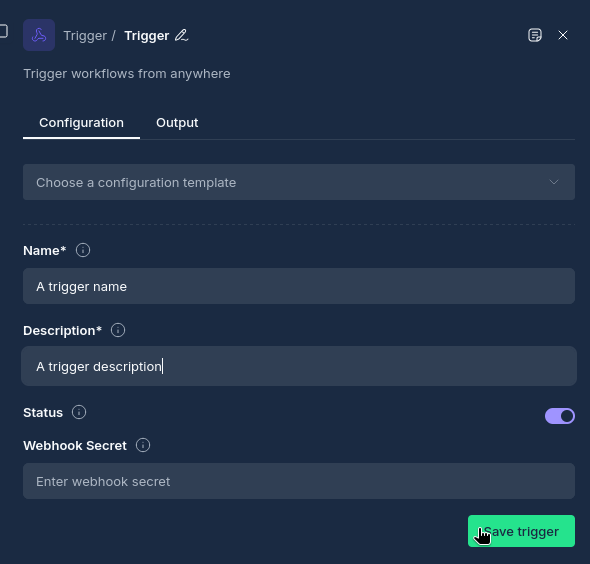
- Configure the node with a descriptive name and description
- Click the "Save trigger" button to initialize the trigger
- Once saved, the trigger node's configuration will display the webhook URL that external systems can use
Trigger Status
Triggers have two main states:
- Active: The trigger is listening for events and will start workflow executions
- Inactive: The trigger is disabled and will not process incoming events
Security Considerations
- Webhook Secrets: Use webhook secrets to verify request authenticity. When a trigger is configured with a webhook secret, all incoming requests must include the secret in the
X-Webhook-SecretHTTP header. Requests with a missing or incorrect secret are rejected with a401 Unauthorizedresponse and recorded as failed trigger events. - URL Security: Webhook URLs are unique and should be kept confidential
- Rate Limiting: Consider implementing rate limiting for high-frequency triggers
- Input Validation: Validate incoming trigger data to prevent security issues
Best Practices
- Descriptive Naming: Use clear names that indicate the trigger's purpose and source
- Error Handling: Add Script Nodes after Trigger Nodes to handle malformed or unexpected data
- Data Validation: Validate trigger payload structure before processing
- Monitoring: Monitor trigger activity to ensure proper operation
- Documentation: Document expected trigger payload formats for external integrators
- Testing: Test trigger functionality with sample payloads before production use
Example Configurations
Example 1: Security Alert Webhook
Trigger Configuration:
- Name: "Security Platform Alerts"
- Type: "webhook"
- Webhook Secret:
[your-webhook-secret] - Expected Payload:
{
  "alert_id": "SEC-001",
  "severity": "high",
  "alert_type": "malware_detected",
  "affected_host": "server-01.example.com",
  "timestamp": "2024-04-24T10:30:00Z"
}
Node Configuration:
- Output Type: "json"
- Connected to downstream Script Node for alert processing
Example 2: Vulnerability Notification
Trigger Configuration:
- Name: "Vulnerability Scanner Alerts"
- Type: "webhook"
- Expected Payload:
{
  "scan_id": "VS-12345",
  "target": "app.example.com",
  "vulnerabilities": [
    {
      "cve": "CVE-2024-1234",
      "severity": "critical",
      "affected_component": "web_server"
    }
  ]
}
Node Configuration:
- Output Type: "json"
- Connected to Integration Node for ticket creation in Jira
Integration Examples
External System Integration
Trigger Nodes can receive data from various external systems:
Security Information and Event Management (SIEM)
When the trigger has a webhook secret configured, include it via the X-Webhook-Secret header:
curl -X POST https://NINA.example.com/triggers/webhook/{trigger-id} \
  -H "Content-Type: application/json" \
  -H "X-Webhook-Secret: your-secret" \
  -d '{
    "event_type": "security_incident",
    "incident_id": "INC-001",
    "severity": "high"
  }'
Threat Intelligence Platforms
When the trigger has no webhook secret, the X-Webhook-Secret header can be omitted:
curl -X POST https://NINA.example.com/triggers/webhook/{trigger-id} \
  -H "Content-Type: application/json" \
  -d '{
    "indicator": "malicious.example.com",
    "indicator_type": "domain",
    "threat_level": "high",
    "source": "threat_intel_feed"
  }'
Troubleshooting
| Issue | Resolution |
|---|---|
| Webhook not receiving requests | Verify the webhook URL is correct and accessible |
| Authentication failures (401) | Ensure the X-Webhook-Secret header matches the secret configured on the trigger |
| Malformed payload errors | Validate incoming JSON structure and format |
| Workflow not starting | Ensure trigger is active and properly connected to downstream nodes |
| Rate limiting issues | Implement request throttling or increase limits |
| Timeout errors | Optimize downstream node processing for faster execution |
Advanced Usage
Dynamic Trigger Configuration
Trigger Nodes can be configured to handle different types of payloads:
- Conditional Processing: Use Conditional Nodes after Trigger Nodes to route based on trigger data
- Data Transformation: Use Script Nodes to normalize data from different sources
- Multi-Source Triggers: Configure different triggers for different data sources
Monitoring and Alerting
Monitor trigger activity and workflow execution:
- Track trigger event frequency and success rates
- Set up alerts for failed workflow executions
- Monitor payload validation errors
- Track downstream node execution performance
API Integration
Trigger Nodes can be integrated programmatically:
Webhook URL Format
https://your-NINA-instance.com/triggers/webhook/{trigger-id}
Authentication Headers
When a trigger is created with a webhook secret, all requests to the webhook URL must include the secret in the X-Webhook-Secret header:
X-Webhook-Secret: your-configured-secret
If the trigger has no secret configured, this header is not required.
Response Codes
- 200: Webhook received and workflow started successfully
- 400: Invalid payload or missing required fields
- 401: Authentication failed (missing or incorrect
X-Webhook-Secretheader) - 403: Trigger is not active
- 404: Trigger not found
- 500: Internal server error during workflow initiation
Next Steps
After configuring your Trigger Node, consider connecting it to:
- Script Nodes: To validate and transform incoming trigger data
- Integration Nodes: To enrich data from external sources
- Operation Nodes: To perform automated security operations
- Conditional Nodes: To create conditional workflows based on trigger data
- Output Nodes: To save trigger events and workflow results
Updated: 2026-02-19