Operation Node Guide
Overview
The Operation Node is a core component of NINA workflows that allows you to execute security tools and operations on your input data. Operation Nodes connect to the NINA tool registry to run specialized security tools on your workflow data.
Use Cases
- Subdomain enumeration and discovery
- Port scanning and service detection
- Vulnerability scanning
- Web application crawling and analysis
- DNS resolution and analysis
- Fuzzing and brute forcing
- Network mapping and reconnaissance
Creating an Operation Node AKA Tools
Basic Setup
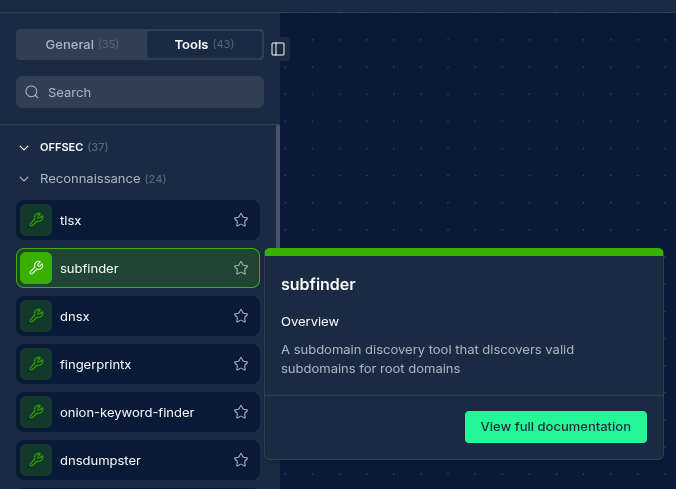
- Drag a Tool from the node palette onto your workflow canvas
- Connect it to an input source. Can be any node type as long as it matches required format (typically an Input Node or a Script Node)
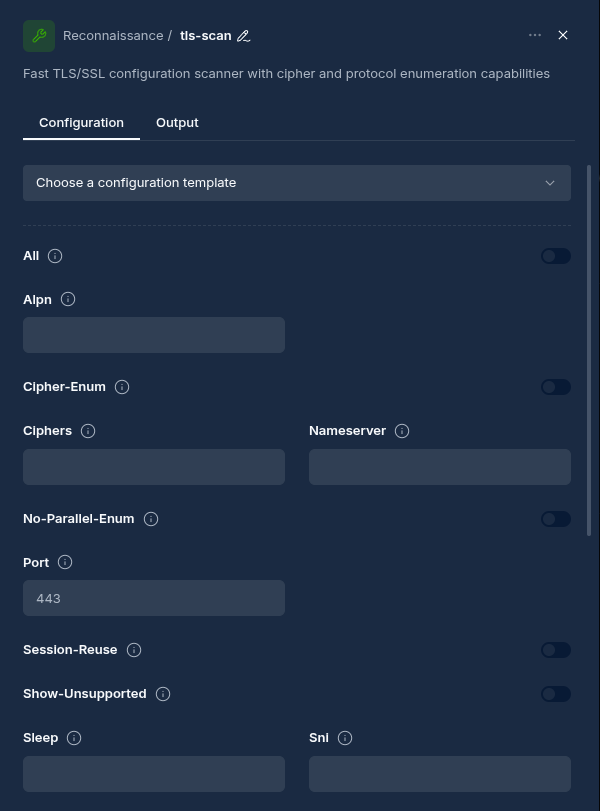
- Configure tool-specific parameters
Configuration Options
Node Properties
| Property | Description |
|---|---|
| Name | A descriptive name for the node |
| Tool | The security tool to execute |
| Parameters | Tool-specific configuration options |
Tool Parameters
Each tool has its own set of parameters that control its behavior. Common parameters include:
- Threads: Number of concurrent threads for parallel processing
- Timeout: Maximum execution time
- Rate Limit: Requests per second to limit scanning speed
- Word Lists: Paths to word lists for fuzzing or brute forcing
- Output Format: Format of the tool's output (JSON, CSV, etc.)
Node outputs are stored as files at /workflow/nodeName, aside from Input Nodes with populated Files, those would store at /workflow/nodeName/nameOfFile
How Operation Nodes Work
When a workflow is executed:
- The Operation Node receives input data from the previous node
- The input is automatically split into chunks for parallel processing
- Each chunk is executed independently by a worker running the selected tool
- Once all chunks finish, the results are merged back into a single output
- The merged output is passed to the next node in the workflow
Parallel Execution and Chunking
Operation Nodes automatically split large inputs to speed up execution. How the splitting works depends on the type of input:
- Multiple input files (e.g. from branching edges or file-based Input Nodes): Each file is processed independently as its own chunk — no splitting needed.
- Single text input (e.g. a list of domains from a previous node): The lines are distributed evenly across multiple chunks. The number of chunks is controlled by the tool's concurrency setting (defaults to 3). Setting concurrency to 1 disables splitting entirely.
For example, if your input has 100 domains and the tool concurrency is 3, the engine creates 3 chunks of ~33 domains each and runs them in parallel.
Merge Step
After all chunks complete, the engine automatically merges the partial results into a single output file. Downstream nodes always receive the merged result — they never see individual chunk files. This merge step happens transparently and requires no configuration.
VPN / Network Configuration
Some tools require VPN connectivity (e.g. login checkers, Google Dorks). If you attach a Network Config to the node, the worker establishes a VPN tunnel before running the tool. When VPN is active, proxy parameters are automatically excluded to avoid conflicts.
Best Practices
- Connect Appropriate Inputs: Ensure the input data format matches what the tool expects
- Parameter Tuning: Adjust tool parameters based on your specific needs and target scope
- Resource Consideration: Some tools can be resource-intensive; adjust thread counts accordingly
- Output Compatibility: Verify that the tool's output format is compatible with downstream nodes
Example Configurations
Example 1: Subfinder Configuration
| Parameter | Value | Description |
|---|---|---|
| threads | 10 | Number of concurrent threads |
| timeout | 30 | Maximum execution time in seconds |
| recursive | true | Enable recursive subdomain discovery |
| sources | "google,virustotal,passivetotal" | Data sources to query |
Example 2: HTTPX Configuration
| Parameter | Value | Description |
|---|---|---|
| threads | 50 | Number of concurrent threads |
| follow-redirects | true | Follow HTTP redirects |
| status-code | true | Include status codes in output |
| title | true | Include page titles in output |
| technology-detection | true | Identify technologies in use |
Troubleshooting
| Issue | Resolution |
|---|---|
| Tool execution failure | Check tool parameters and input format |
| Timeout errors | Increase the timeout parameter or reduce thread count |
| Empty results | Verify input data is valid and within the tool's scope |
| Format incompatibility | Add a Script Node to transform data between incompatible nodes |
Advanced Usage
Tool Chaining
Create powerful reconnaissance pipelines by chaining multiple Operation Nodes:
- Subdomain Discovery → DNS Resolution → Port Scanning → Vulnerability Scanning

Next Steps
After configuring your Operation Node, consider connecting it to:
- Script Nodes: To process or transform the tool output

Updated: 2025-12-02